Knowing how to reset robot vacuum models safely starts with the mildest option: reboot first, because a reboot keeps maps and schedules, and factory reset only if the fault survives. Hold times vary by brand and model.
Resets are easier to plan once you know your model’s controls, so it helps to choose with that in mind. Our consumer robots hub is a good place to compare the best robot vacuum options for your home.
The three reset levels and what each one erases
A robot vacuum can be reset at three levels, and they differ mainly in what they delete. Choosing the right level matters more than memorising any single button sequence, because the higher levels cannot be undone.
- Reboot or soft reset. The robot restarts and keeps its data. iRobot states that a reboot is always safe and will not delete maps, schedules or other preferences, according to its Roomba reboot guidance. Tapo’s soft reset likewise puts the robot into setup mode and keeps its settings, as described in Tapo’s reset FAQ.
- Network or setup reset. This clears the wireless connection so the robot can be paired again. It is the right tool when the robot works physically but the app no longer sees it.
- Factory reset. This returns the robot to its out-of-the-box state. iRobot says it deletes everything and puts the robot back to factory settings, and Tapo says it deletes all custom settings.
The sensible order follows from that list. Try the level that keeps your data first, and move up only when the fault remains. iRobot recommends a factory reset only if rebooting does not clear the error, and it advises contacting Customer Care before you go that far.
Soft reset in stages
A soft reset is a short procedure that suits freezes, unresponsive buttons and a robot that stops mid-run. The iRobot sequence below is the best-documented one, and other brands follow the same pattern with different buttons and timings.
- Take the robot off its dock. iRobot’s reboot instructions assume the robot is away from the dock.
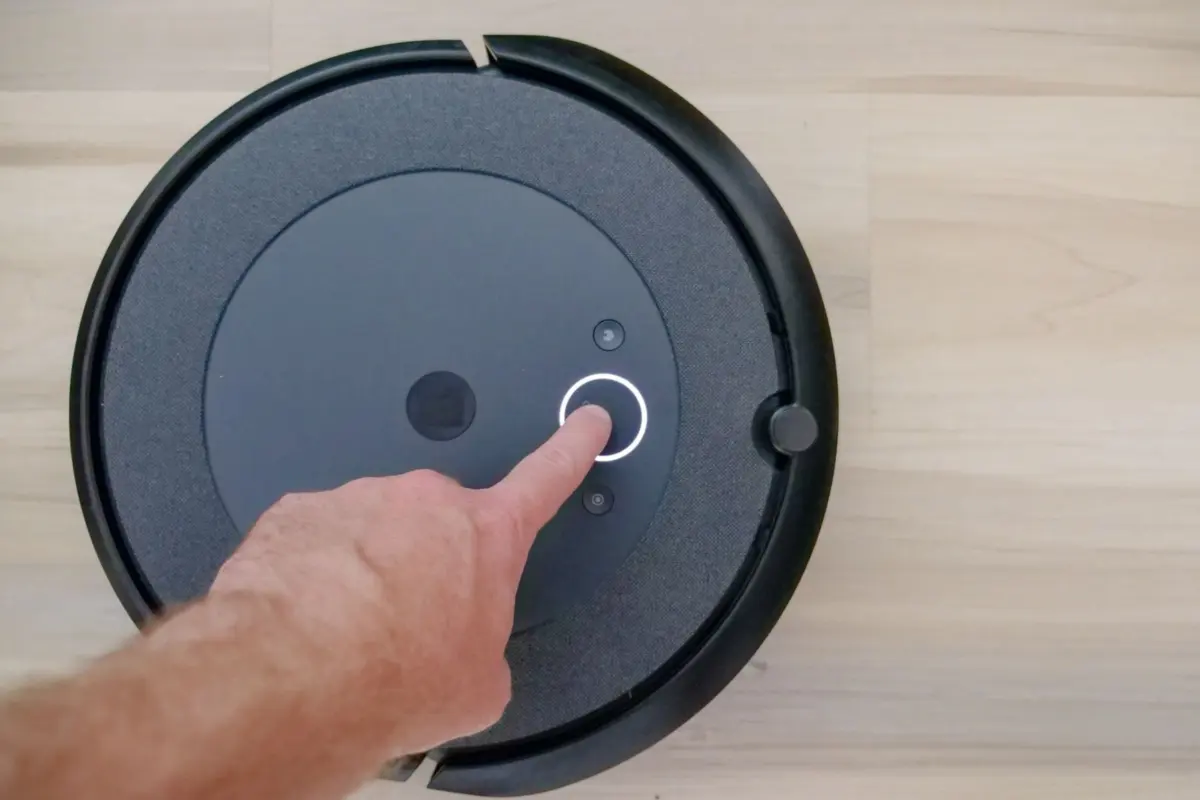
- Press and hold the right button. On Roombas with a CLEAN or POWER button, hold it for roughly 20 seconds. iRobot notes that the time varies by model.
- Wait for the restart. The robot can take up to 1.5 minutes to reboot, so avoid pressing buttons again during that window.
- Test with a short run. Check that the robot starts, and that your maps and schedules are still in the app. Because a reboot does not delete them, a missing map points to a different problem.
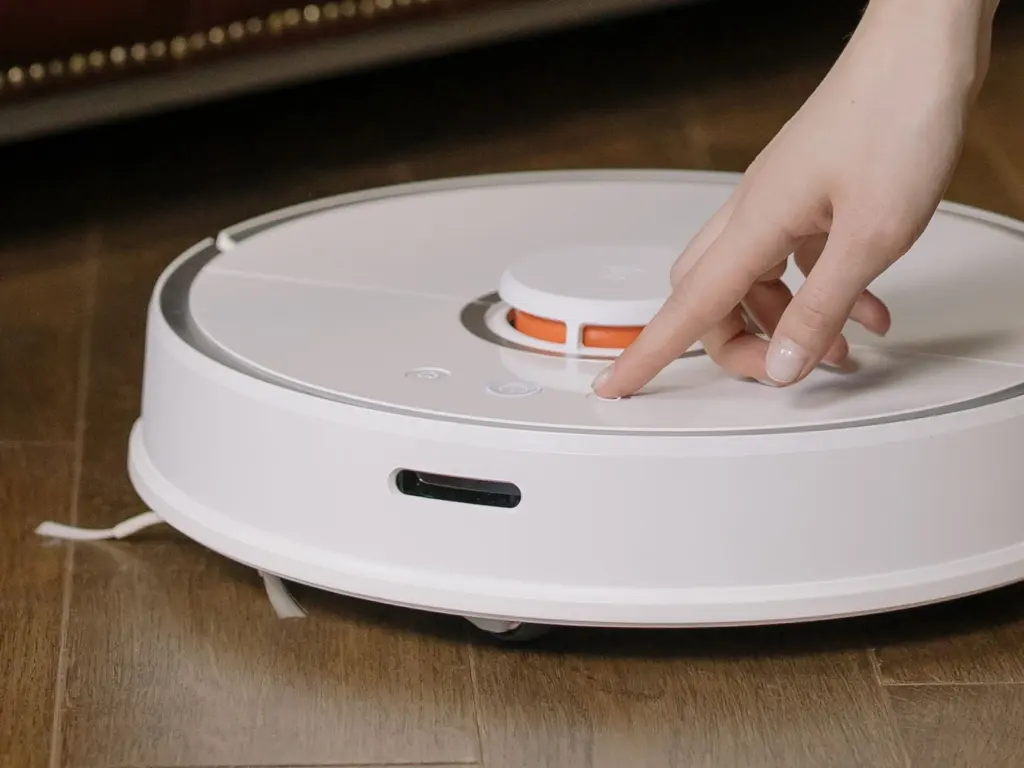
The Roomba Combo works differently: open the top cover, turn the power switch off, wait 10 seconds, then turn it on again. On a Tapo robot, press and hold the + combination button for 5 seconds, which enters setup mode and keeps your settings.
Button combinations by brand and model
The table collects the documented sequences for iRobot Roomba families and Tapo, so you can compare them side by side. The key point is that there is no universal combination: even within Roomba, the buttons and timings change with the model line.
| Model | Soft reset or reboot | Factory reset | Planning use |
|---|---|---|---|
| Roomba with CLEAN or POWER button | Off the dock, hold the button for roughly 20 seconds; times vary by model; up to 1.5 minutes to reboot | Deletes everything; only if a reboot fails | The default first step for most Roomba faults, with no data loss |
| Roomba Essential | Hold HOME and SPOT for about 12 seconds | Deletes everything; only if a reboot fails | Do not reuse the shorter hold time from older models |
| Roomba 500/600/700 (non-Wi-Fi) and e Series | Hold HOME and SPOT for about 10 seconds | Deletes everything; only if a reboot fails | Suits older models with no app, where nothing needs re-pairing |
| Roomba Combo | Open the top cover, switch power off, wait 10 seconds, switch on | Deletes everything; only if a reboot fails | A power-switch cycle rather than a button hold |
| Tapo robot vacuum | Hold the + combination button for 5 seconds; enters setup mode; settings kept | Hold the + combination button for 10 seconds; deletes custom settings; not possible while charging | The same button gives two outcomes depending on hold length |
Figures come from iRobot’s reboot and reset article and the Tapo reset FAQ.
Hold times in the table run from 5 to 20 seconds, and the hold length is what separates a gentle restart from a data-erasing reset on the Tapo. Count the seconds rather than guessing, and release as soon as the robot signals. For a brand not listed here, use the manual or the maker’s support page rather than borrowing a sequence from another brand.
Factory reset: when it is worth it and how to do it
A factory reset is worth it when a reboot has not cleared the error, when stored data is corrupted, or when the robot is changing hands. Everything stored on the robot is lost, so treat it as a final step.
Before you start
iRobot suggests contacting its Customer Care before a factory reset, which is sensible because support can sometimes identify a hardware fault that no reset will fix. Note any custom settings you want to recreate, because the reset removes them. Also check the charging state: Tapo states that its robot cannot be factory reset while it is charging, so take it off the dock first.
Model examples
- Tapo. Press and hold the + combination button for 10 seconds to restore factory defaults. Hold only 5 seconds and you get the soft reset instead.
- Xiaomi Robot Vacuum X20 Max. Press and hold the reset button under the cover for 3 seconds to restore factory settings, per Xiaomi’s support FAQ. This is the shortest hold on this page, which is why a pressed pin or recessed button needs a deliberate, steady press.
- iRobot Roomba. The reset deletes everything and returns the robot to factory settings. Follow the model-specific instructions on iRobot’s support page.
Afterwards, expect to set the robot up as if it were new: pair it again, and rebuild the map with a fresh run.
Reconnecting to Wi-Fi and the app after a reset
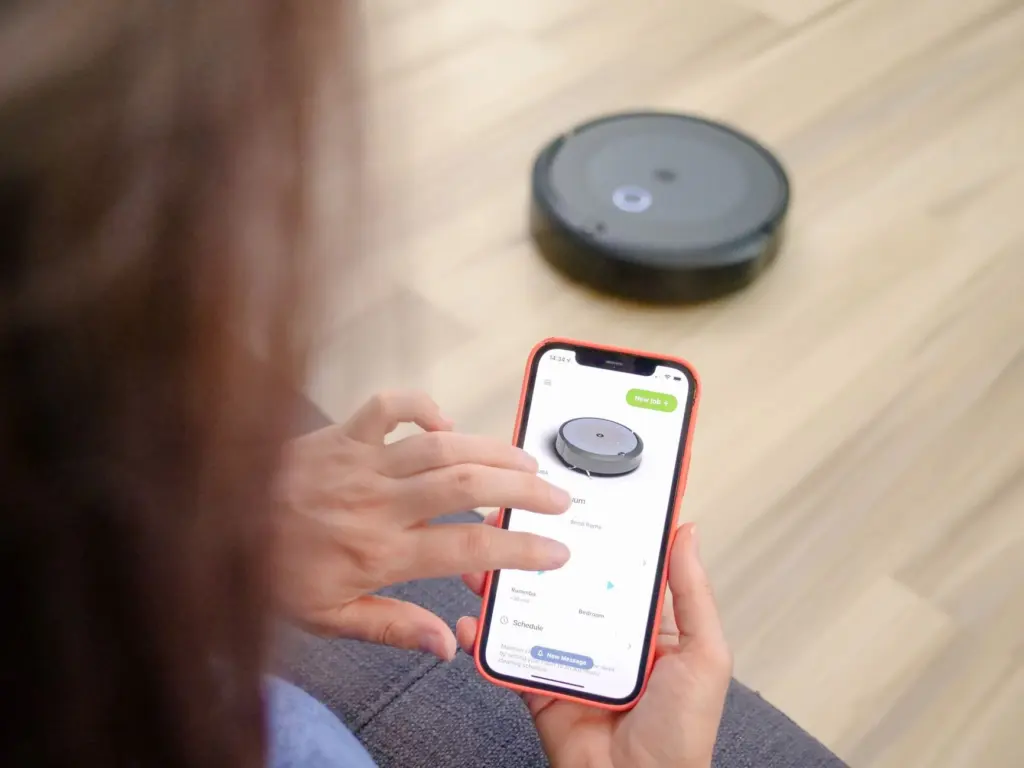
Reconnecting means putting the robot into pairing or network-configuration mode and then adding it in the companion app. Which button does that depends on the brand.
On the Xiaomi X20 Max, press and hold the two buttons for 7 seconds until a voice prompt says the robot is waiting for network configuration. On a Tapo, the 5-second soft reset leaves the robot in setup mode with its settings intact, so you can usually pair again without losing data. Stick to the sequence that matches your model.
A practical re-pairing order
- Put the robot in pairing mode using your model’s sequence, and wait for the voice prompt or indicator your manual describes.
- Open the app and add the device, removing any stale entry for the same robot first so the old record does not conflict with the new one.
- Enter your home network details carefully and keep the phone close to the robot while it joins.
- Charge the robot if pairing stalls. One user on the Wyze community forum reported that a Wi-Fi reset problem cleared after letting the robot charge for a little while. That is a single community report and not official guidance, but it costs nothing to try.
Pitfalls and what to do when a reset does not work
Most failed resets come from using the wrong level, the wrong timing or the wrong state. Three mistakes recur.
- Jumping straight to a factory reset. A reboot keeps your maps and schedules, so skipping it throws away data for no benefit.
- Borrowing another model’s hold time. The Roomba Essential needs about 12 seconds while older non-Wi-Fi models need about 10, so a copied time can fail silently.
- Resetting on the dock. The iRobot reboot is done off the dock, and a Tapo factory reset is blocked while the robot charges.
If a reboot and a factory reset both fail to clear the fault, contact the manufacturer’s support, since iRobot itself points to Customer Care. If the robot keeps failing and you are weighing a replacement, a low-profile model such as those in The Thinnest Robot Vacuum in 2026: Slim Picks That Actually Clean Under Furniture is worth a look. Households with shedding pets can compare features in the best robot vacuum for pet hair guide. More device troubleshooting lives under Consumer Technology.
Frequently asked questions
How do I soft reset a robot vacuum?
Use the restart that keeps your data. On a Roomba, take it off the dock and hold CLEAN or POWER for roughly 20 seconds, per iRobot. On a Tapo, hold the + combination button for 5 seconds, per Tapo.
How do I factory reset it?
Hold the model’s factory reset control for the documented time: 10 seconds on a Tapo, with the robot off its charger, or 3 seconds on the Xiaomi X20 Max reset button under the cover. Roomba owners should check with iRobot Customer Care first, since the reset deletes everything.
How do I reconnect it to Wi-Fi?
Put the robot into network-configuration mode, then add it again in the app. On the Xiaomi X20 Max, hold the two buttons for 7 seconds until the voice prompt says it is waiting for network configuration, as Xiaomi’s support page explains.
Will rebooting a Roomba erase my maps?
No. iRobot says a reboot will not delete maps, schedules or other preferences, so it is the safe first step before any factory reset.